Use SonarPen (USB C) as a Pressure-Sensitive Stylus on Windows 10/11
SonarPen (USB C) on Windows computer
Transform your Windows 10/11 device into a creative powerhouse.
Use SonarPen (USB C) with these creative Windows apps.












SonarPen (USB C) on Windows computer
Transform your Windows 10/11 device into a creative powerhouse.
Use SonarPen (USB C) with these creative Windows apps.
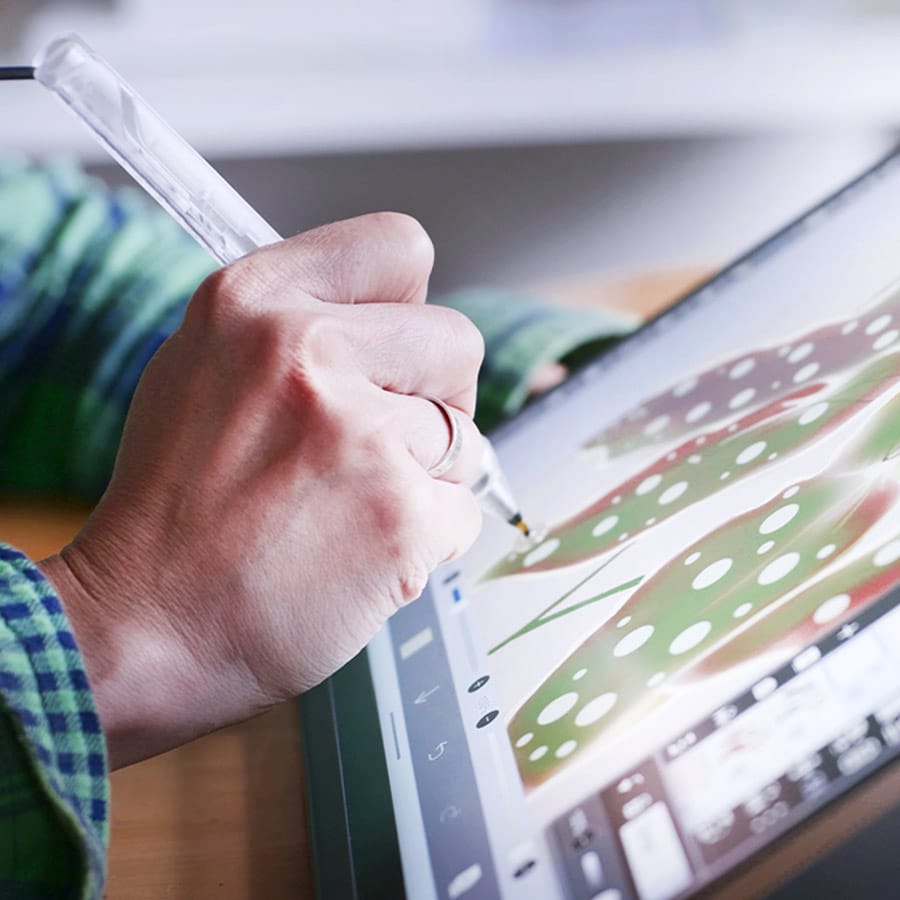
See how to use SonarPen (USB C) to draw on Windows computer
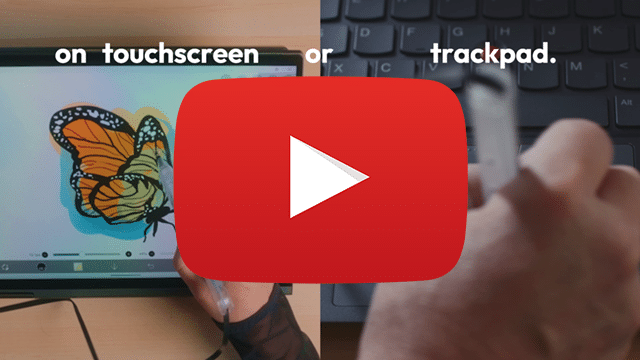
SonarPen (USB C) in action
See how to use SonarPen (USB C) to draw on Windows computer
SonarPen (USB C) in action
Don't wait. Pick up your SonarPen (USB C) and work on your Windows computer now.
Requirements
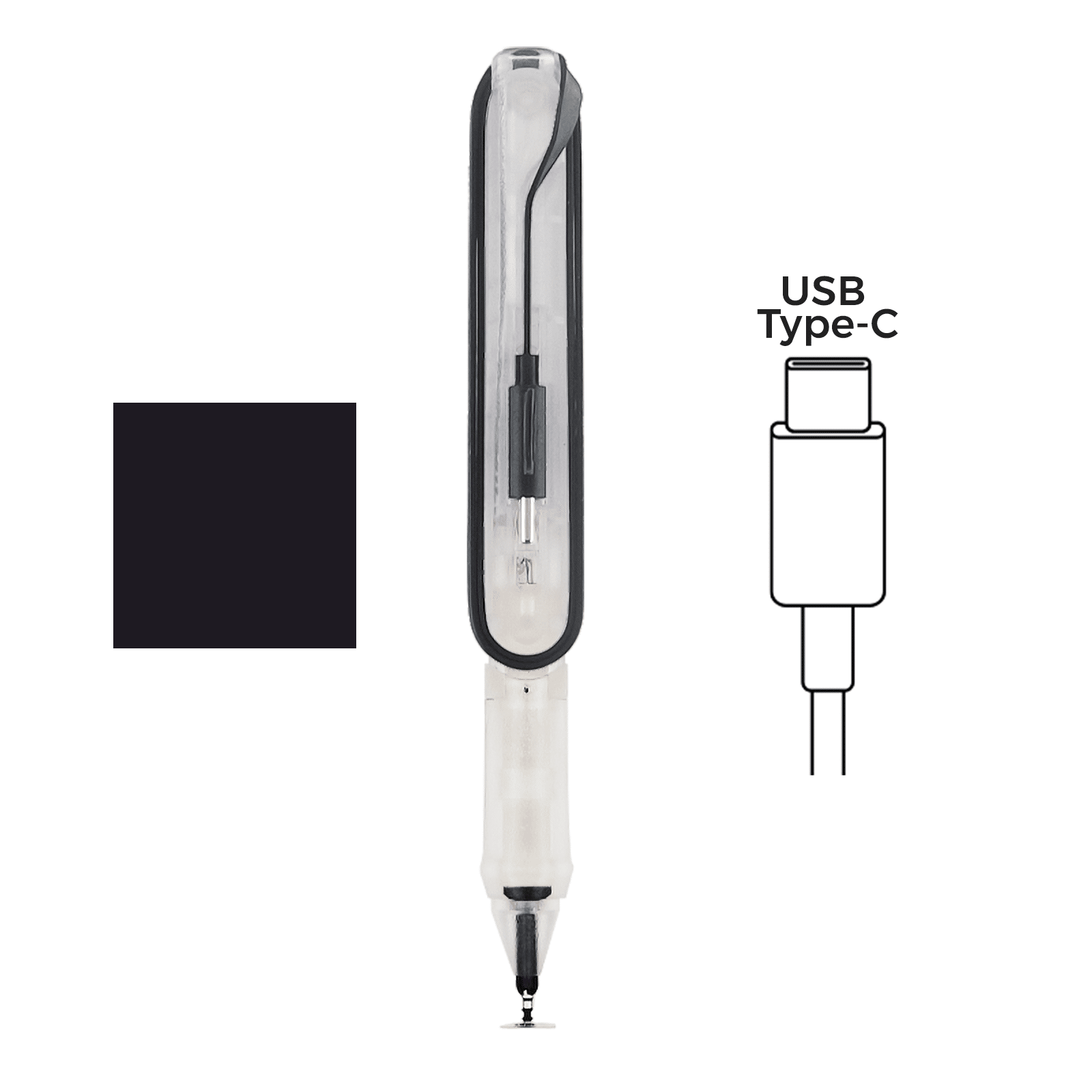
☑️ SonarPen (USB C) stylus / SonarPen stylus with SonarPen USB Type C adapter
**USB adapters from other brands are not compatible.
 | or | 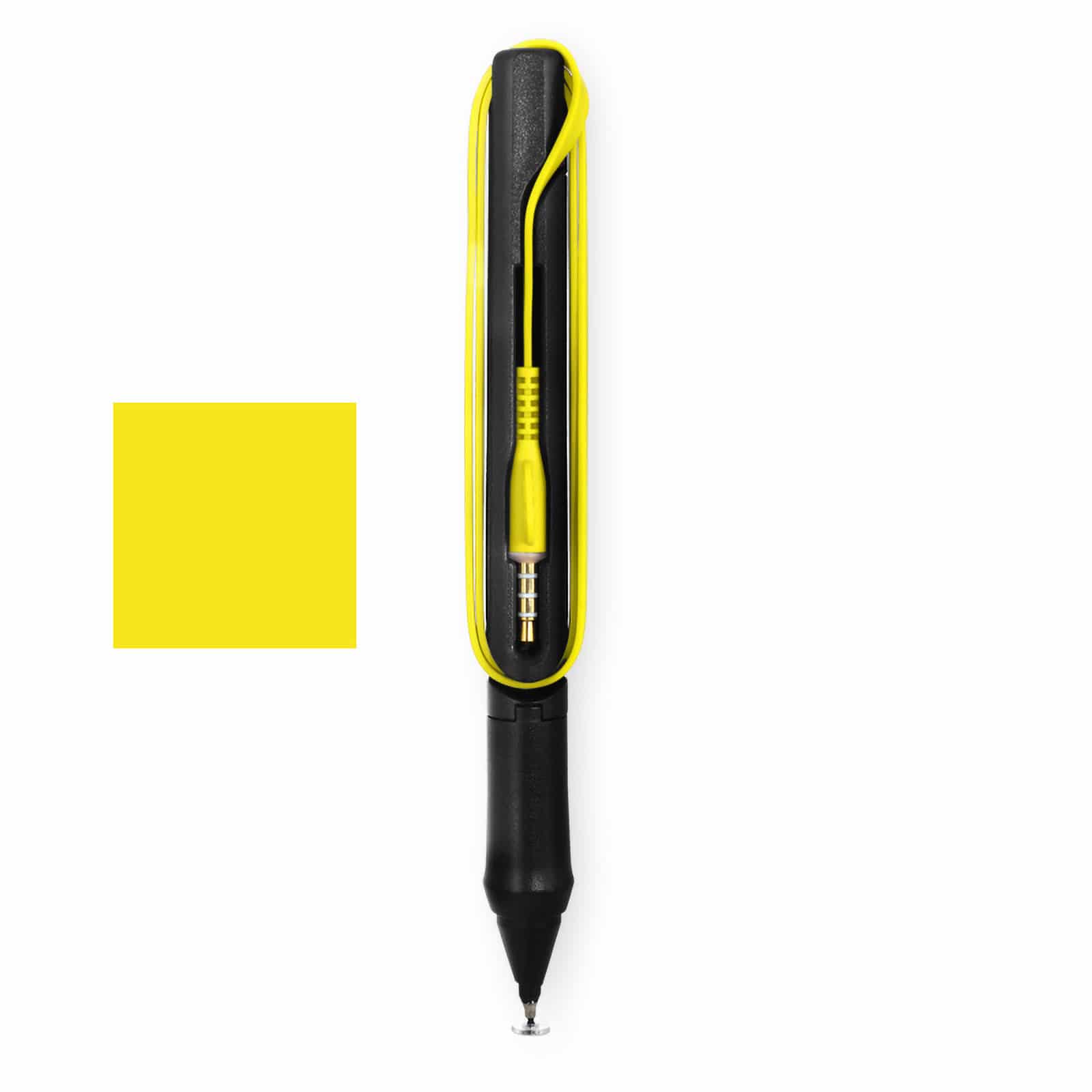 | + | 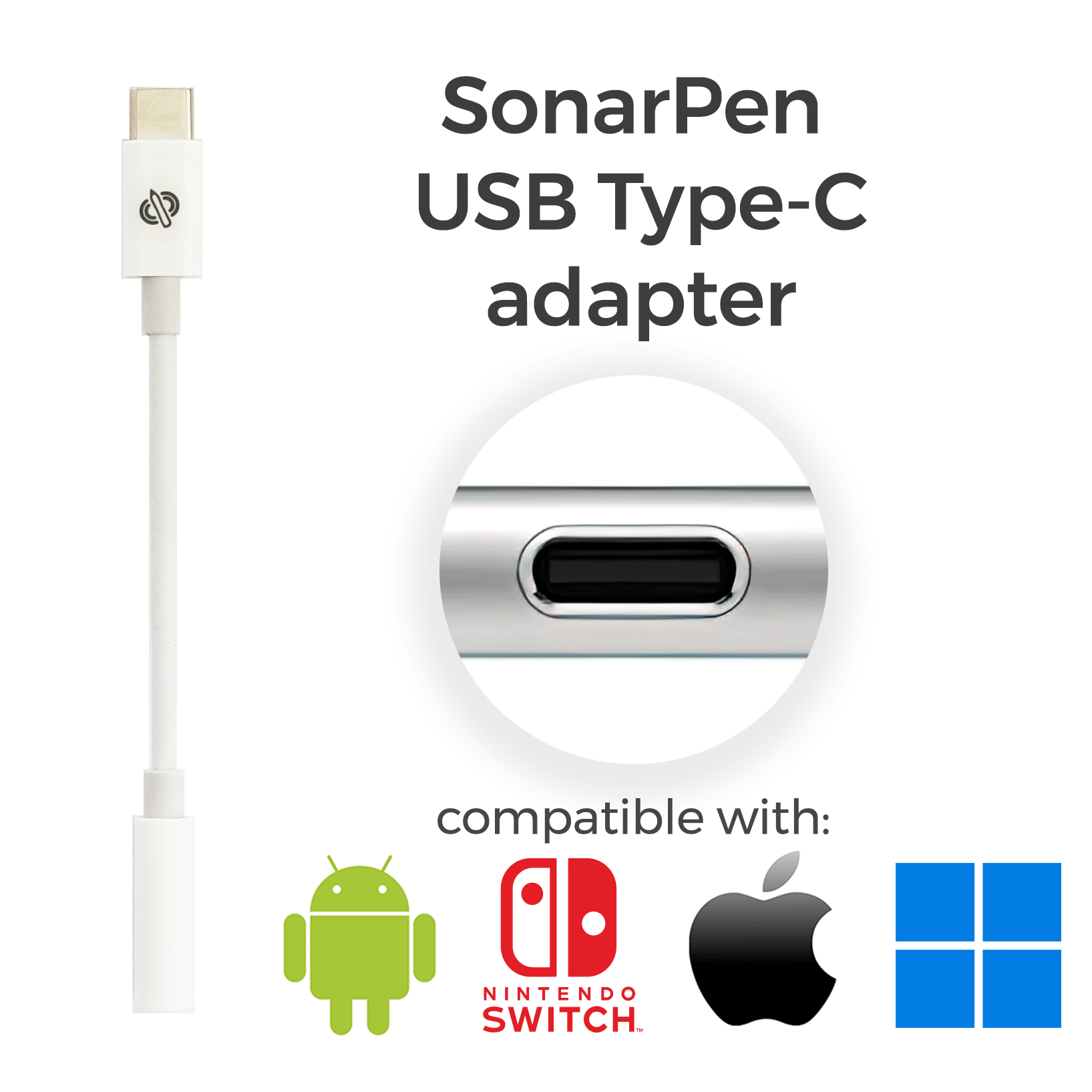 |
|---|
☑️ SonarPen Windows Driver
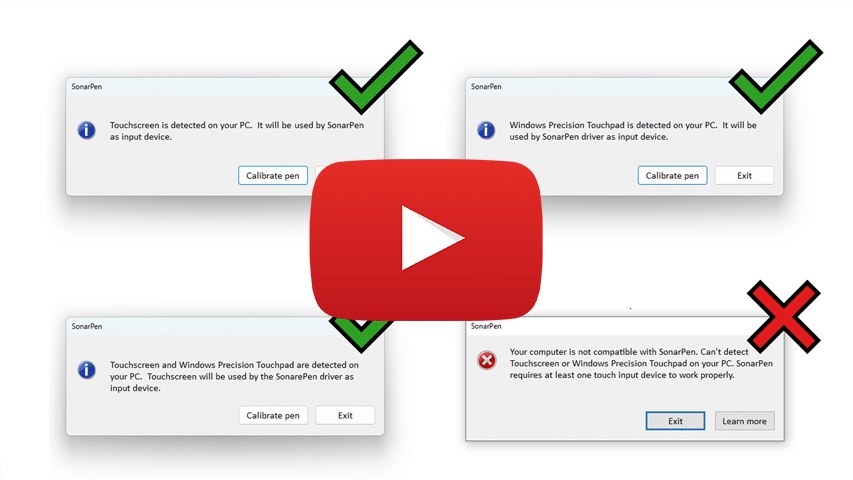
☑️ PC with Touchscreen or Windows Precision Touchpad.
Download and run the SonarPen Windows driver, it will report if your computer has the required touchscreen or trackpad.
Video shows how to know PC has necessary hardware |

☑️ Microsoft Windows 11 or Windows 10 version 1809 (build 17763) and newer.
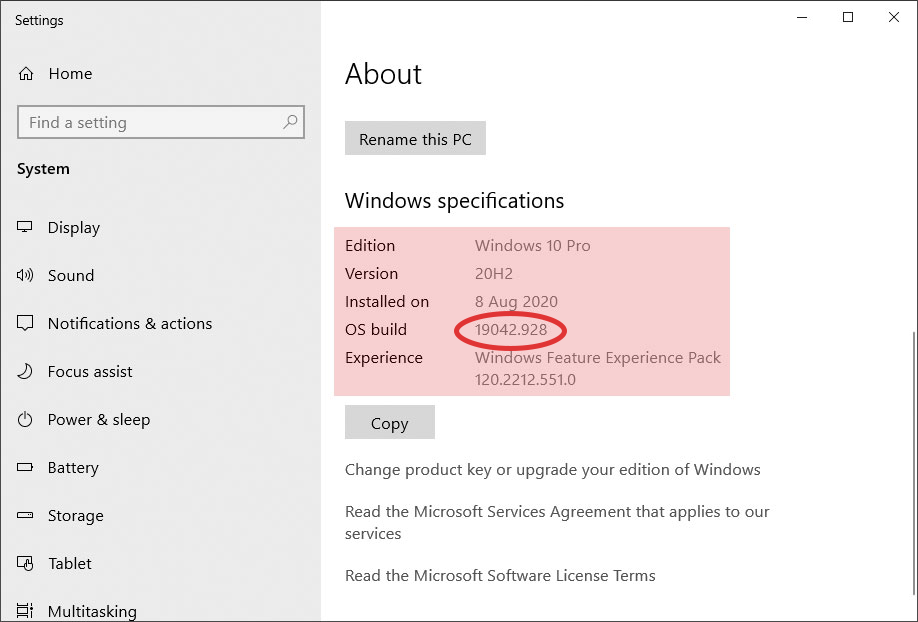
To find out which version of Windows your device is running:
1. Select the Start button > Settings > System > About .
2. Under Windows specifications, check which edition and version of Windows your device is running.
 |
|---|
☑️ Windows apps that support Windows INK API standard (old WinTab app is not supported)
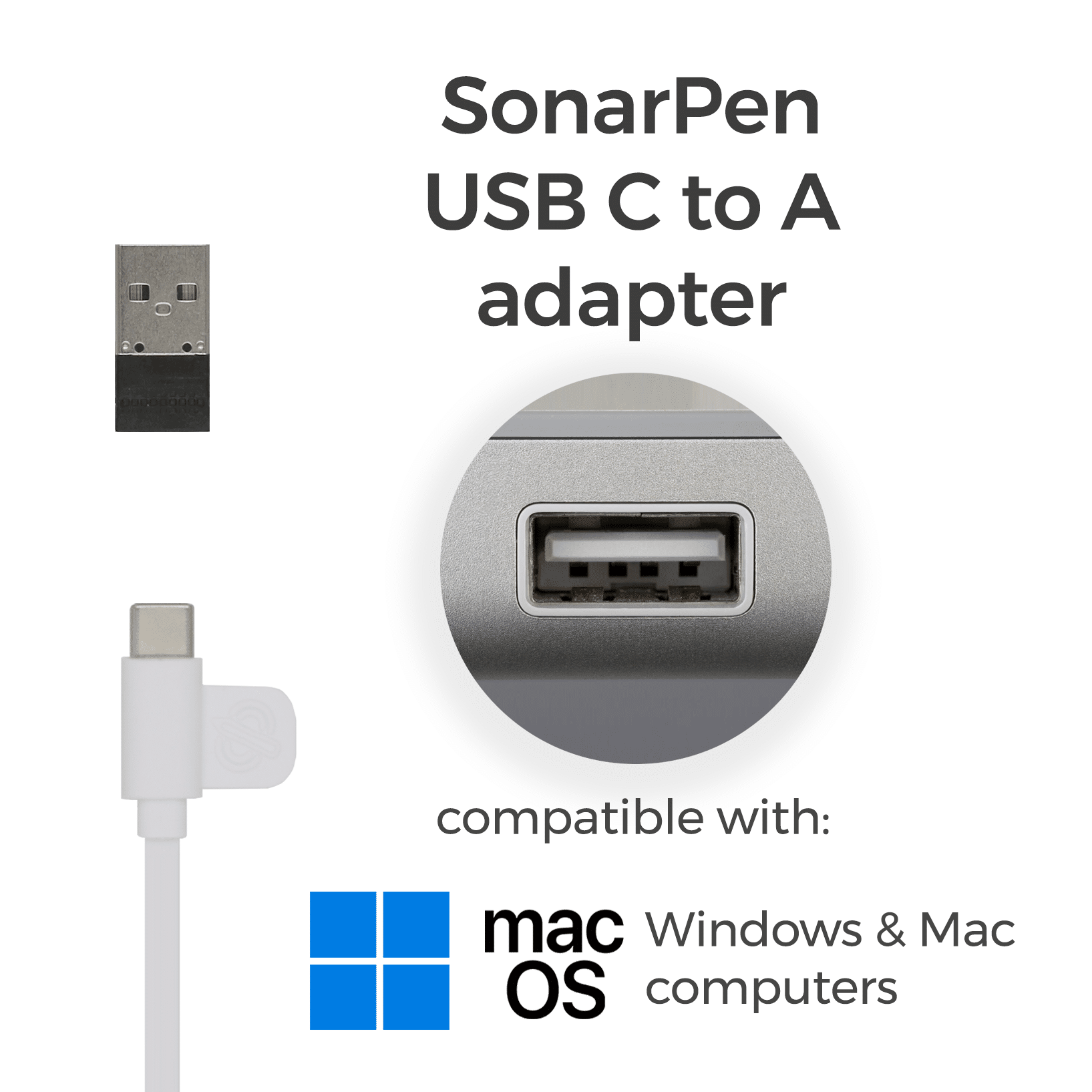
☑️ SonarPen USB Type-C to A adapter
** optional, for computer without USB C port.
 |
|---|
Requirements
☑️ SonarPen (USB C) stylus / SonarPen stylus with SonarPen USB Type C adapter
**USB adapters from other brands are not compatible.
| or | 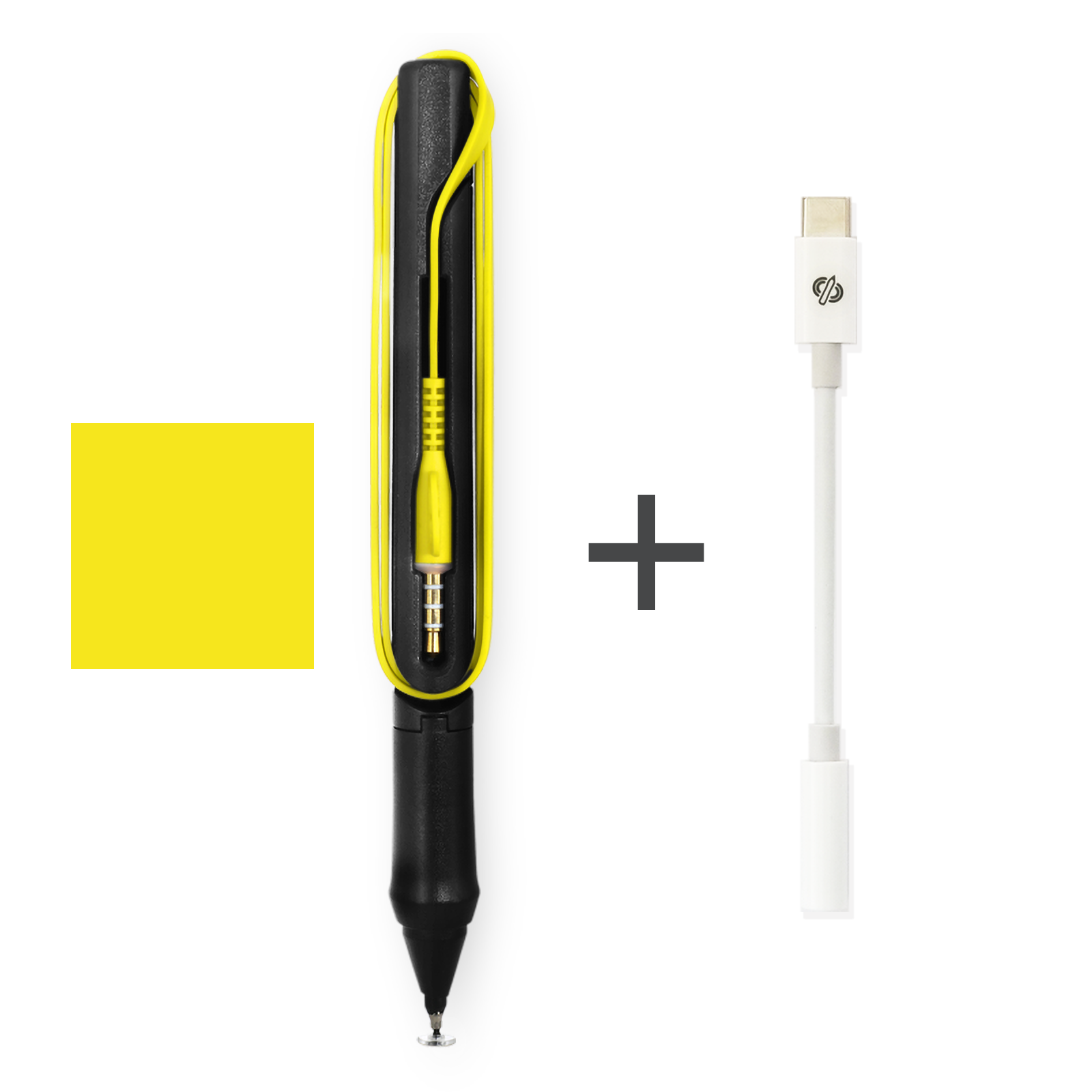 |
|---|
☑️ SonarPen Windows driver
Video shows how to know PC has necessary hardware
☑️ Microsoft Windows 11 or Windows 10 version 1809 (build 17763) and newer.
To find out which version of Windows your device is running:
1. Select the Start button > Settings > System > About .
2. Under Windows specifications, check which edition and version of Windows your device is running.
|
|---|
☑️ Windows apps that support Windows INK API standard (old WinTab app is not supported)
☑️ SonarPen USB Type-C to A adapter
** optional, for computer without USB C port.
|
|---|
missing the SonarPen USB Type-C adapter?
Download SonarPen Windows Driver
V3.0.1, updated on 18 Nov 2025
for HP, Samsung, Lenovo, Dell, LG, Acer
and others Windows notebook computers / tablets
[ v3.0.1 ]
Improved compatibility with Win 11 version 24H2 and 25H2.
- Added the ability to do 1 finger point and click when using trackpad as input device.
- Added the ability to control the SonarPen drawing window and scroll / zoom the canvas with 2 finger gestures as the same time when using trackpad as input device. The trackpad is split in to right and left halves. By default, gestures on the right side is to control the location and the size of the SonarPen drawing window and the left side is to control other elements on the screen.
[ v2.1.3 ]
- Improved compatibility with Win 11 23H2 and Win 10 22H2.
- Improved 2 fingers gesture (pan and zoom) of the on screen drawing window when trackpad is being used as input device with the SonarPen.
[ v2.1.2 ]
- Fixed SonarPen detection issue with slow PC.
- Fixed calibration bug with Win 11.
[ v2.1.0 ]
- Fixed compatibility issue after the latest Win11 and 10 update.
- Added delay to SonarPen detection for better compatibility with some Lenovo computers.
- Minor bug fix with pressure response.
[ v2.0.3 ]
- Added ability to show if the computer has the required Touchscreen or Windows Precision Touchpad at startup.
[ v2.0.0 Initial release in Microsoft store ]
- Pressure sensitivity
- Palm rejection
- User customizable shortcut button
- Pressure sensitive level adjustment
- Pressure smoothness level adjustment
- Tap the table gesture allows switching between drawing and finger gesture mode easily.
|
Step by step video to show how to use SonarPen on Windows PC.
Download SonarPen Windows Driver
V3.0.1, updated on 18 Nov 2025
for HP, Samsung, Lenovo, Dell, LG, Acer
and others Windows notebook computers / tablets
[ v3.0.1 ]
Improved compatibility with Win 11 version 24H2 and 25H2.
- Added the ability to do 1 finger point and click when using trackpad as input device.
- Added the ability to control the SonarPen drawing window and scroll / zoom the canvas with 2 finger gestures as the same time when using trackpad as input device. The trackpad is split in to right and left halves. By default, gestures on the right side is to control the location and the size of the SonarPen drawing window and the left side is to control other elements on the screen.
[ v2.1.3 ]
- Improved compatibility with Win 11 23H2 and Win 10 22H2.
- Improved 2 fingers gesture (pan and zoom) of the on screen drawing window when trackpad is being used as input device with the SonarPen.
[ v2.1.2 ]
- Fixed SonarPen detection issue with slow PC.
- Fixed calibration bug with Win 11.
[ v2.1.0 ]
- Fixed compatibility issue after the latest Win11 and 10 update.
- Added delay to SonarPen detection for better compatibility with some Lenovo computers.
- Minor bug fix with pressure response.
[ v2.0.3 ]
- Added ability to show if the computer has the required Touchscreen or Windows Precision Touchpad at startup.
[ v2.0.0 Initial release in Microsoft store ]
- Pressure sensitivity
- Palm rejection
- User customizable shortcut button
- Pressure sensitive level adjustment
- Pressure smoothness level adjustment
- Tap the table gesture allows switching between drawing and finger gesture mode easily.
Step by step video to show how to use SonarPen on Windows PC.
Help SonarPen works on your Windows device
SonarPen driver works immediately after calibration. However, here are a few tricks to make the SonarPen works with your app and closer to your habit on a Windows device
Can't draw any stroke? Tune up SonarPen's volume
In the very rare occasion that no stroke can be drawn on the calibrate window, it is likely the audio volume associated with the SonarPen is not adjusted automatically by the driver. Lucky, it can be done manually. Here are the steps:
- Press Win + R to open the Run Command dialog box.
- Type mmsys.cpl and press Enter.
- At the Sound Settings window, under the Playback tab, select the SP1 Speakers and click Properties.
- At the Speakers Properties window, under the Levels tab, drag the volume slider all the way to the right.
- Go to the Spatial Sound tab, select Off and press OK to save the new setting.
- At the Sound Settings window, under the Recording tab, select the SP1 Microphone and click Properties.
- At the Microphone Properties window, under the Levels tab, drag the volume slider all the way to the right and press OK to save the new setting.
- Press OK again to exit the Sound Settings window. Try calibrate again.
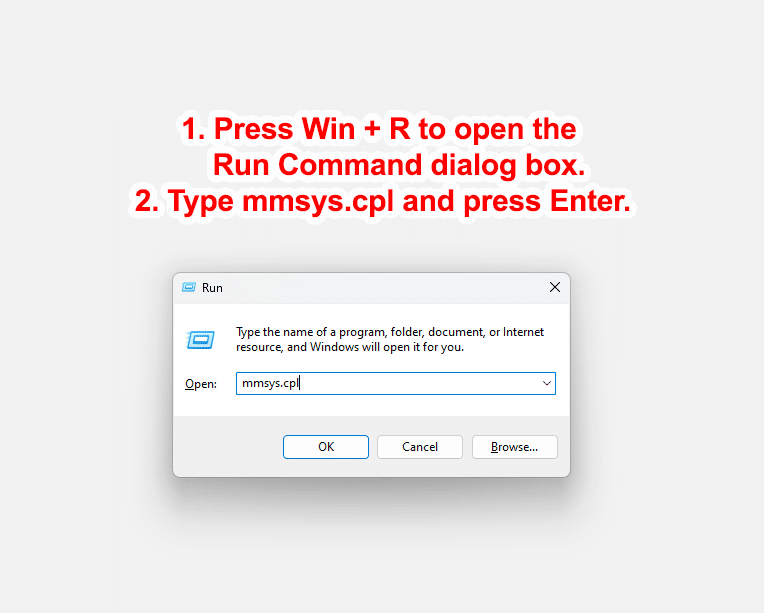
Open the Sound Settings window

Maximize the Playback volume and turn off Spatial sound

Maximize the Microphone volume
Make drawing apps Windows INK compatible
SonarPen is compatible with the latest Windows INK stylus standard which works with almost all the drawing / note-taking apps released after 2017. However, some apps might still setup to use the older WinTab stylus standard by default and it needs to configure to use Windows INK stylus.
The setting is different from app to app, but is usually located in the Preferences, Settings or Options menu. Here are the steps to enable Windows INK in Krita, Clip Studio Paint, PaintTool SAI V2 and Rebelle 6
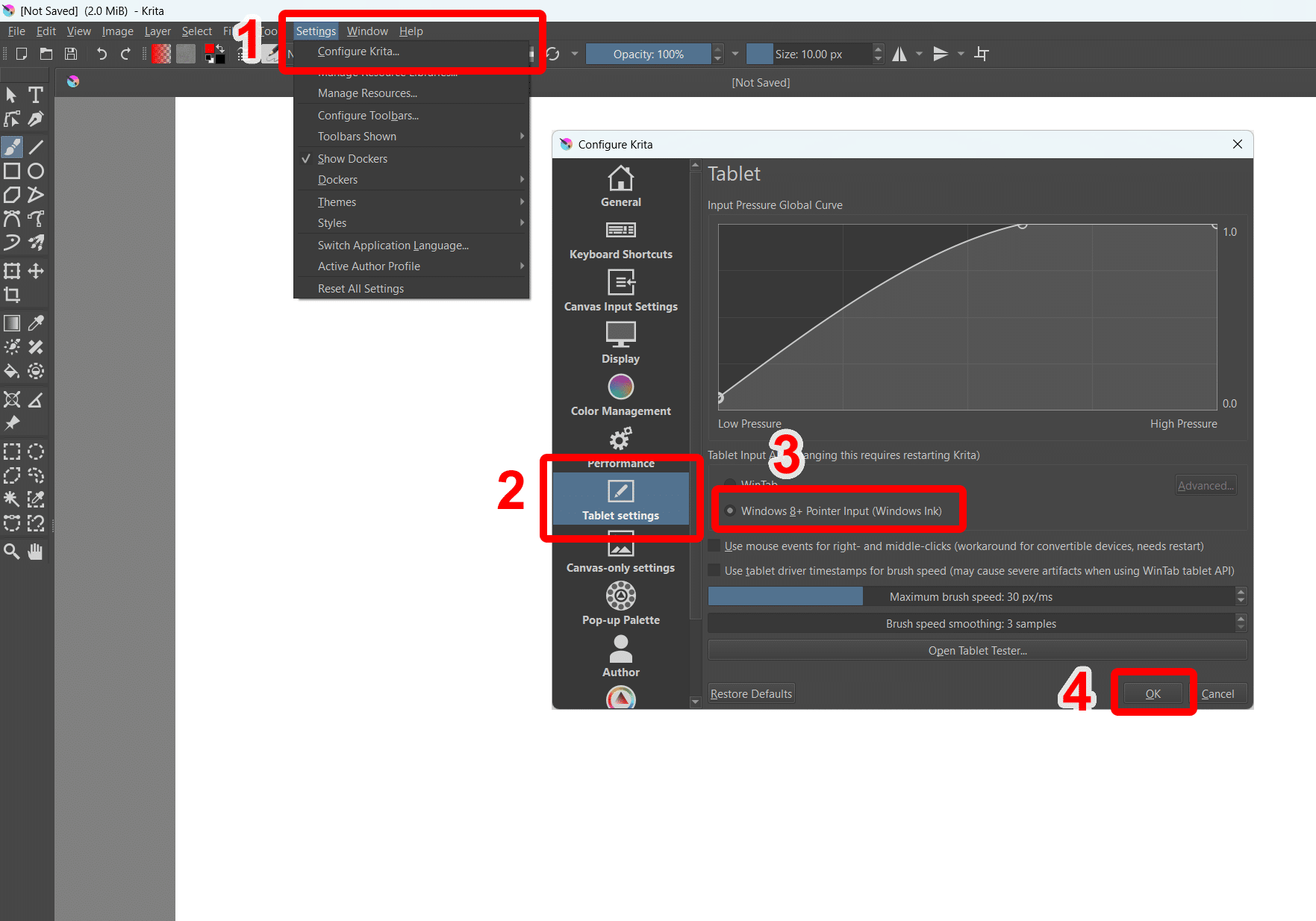
Krita

PaintTool SAI V2

GIMP 2.99.14

Clip Studio Paint

Rebelle 6
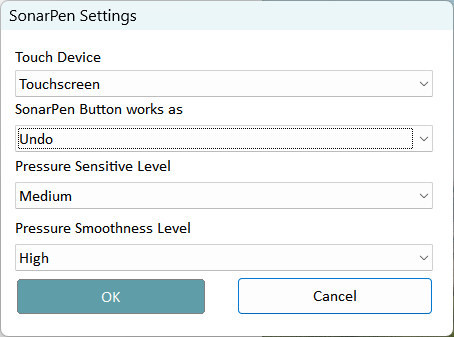
Customize touch device, button and pressure behavior with Settings menu
Touch Device: When the computer has more than one Touch Device, Touchscreen and Touchpad, this option is used to select where the SonarPen will be drew on.
SonarPen Button works as:
- Undo (default setting) - Just like Ctrl-Z. Works in all apps.
- Barrel Button - It triggers the default stylus button function chosen by the app. See below for more detail.
- Toggle between drawing mode and finger gesture mode - It changes the two modes without using the table tapping gesture. See below for more detail.
Pressure Sensitive Level: To choose between Low, Medium and High. It sets how much pressure is required to change the width of a stroke.
Pressure Smoothness Level: To choose between Low, Medium and High. It sets how raw (or how smooth) the pressure level should be reflected on the stroke.
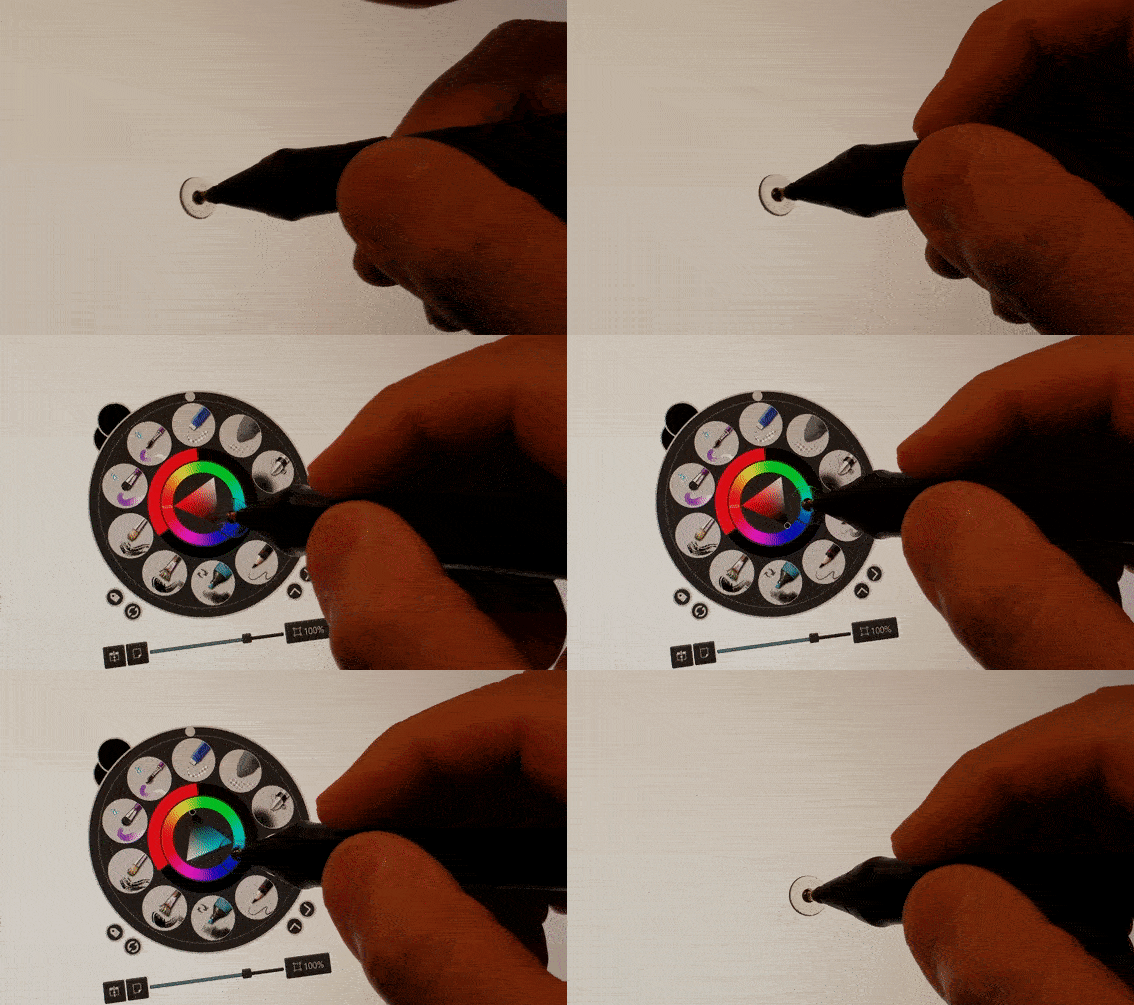
Using the SonarPen button as Windows INK stylus barrel button
After the SonarPen button is clicked, tap the screen to confirm and trigger the function.
Toggle between Drawing and Finger gesture mode with table tapping gesture

When SonarPen is in drawing mode, two finger gesture has no effect on the drawing canvas. To enable finger gesture. either click the button on the SonarPen, use the Win+ESC shortcut on the keyboard or tap SonarPen on the table and hold for 1 second. Repeat to re-enable SonarPen drawing mode.
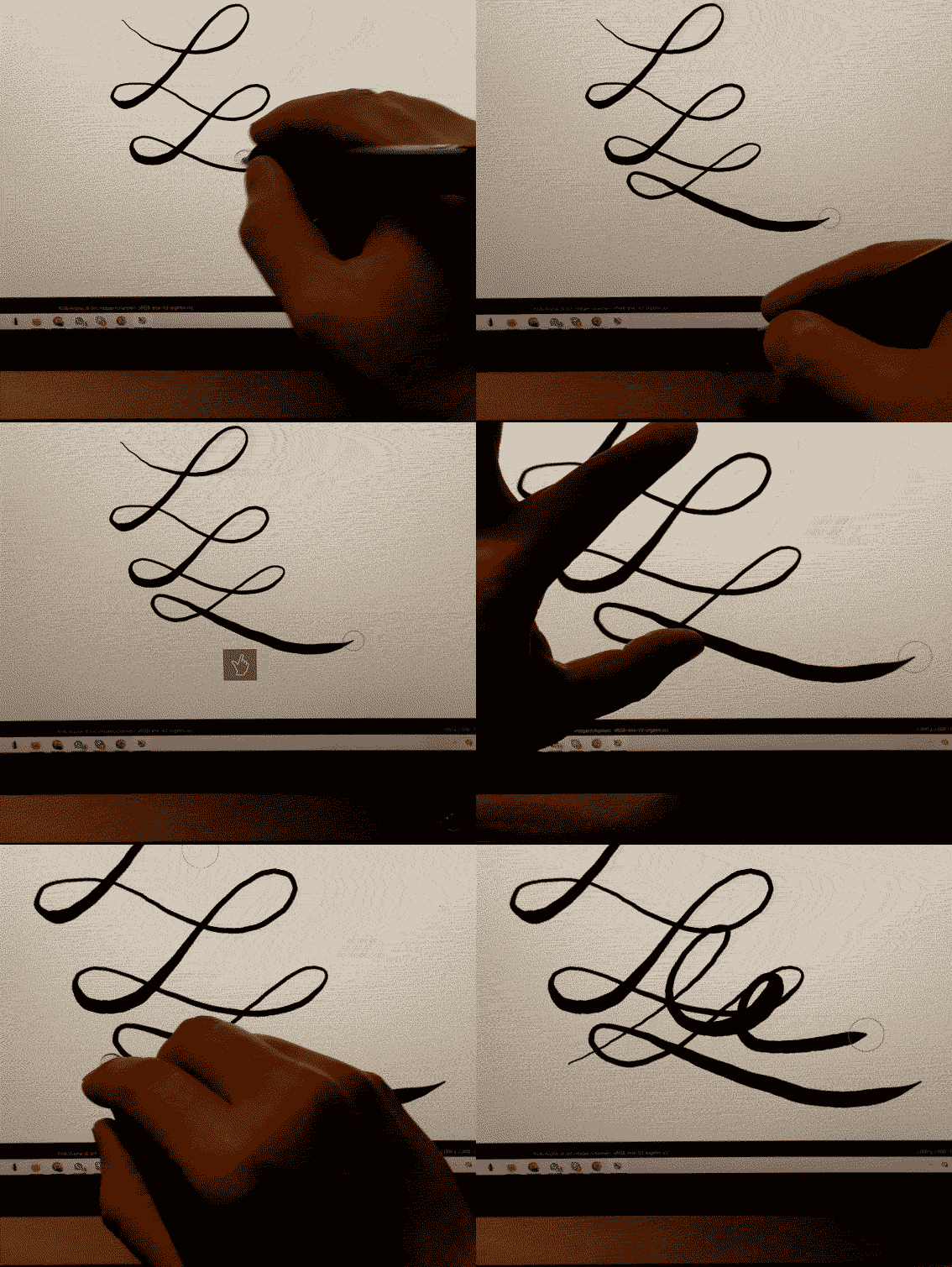
Moving and Zooming the on screen overlay with 2 fingers gestures
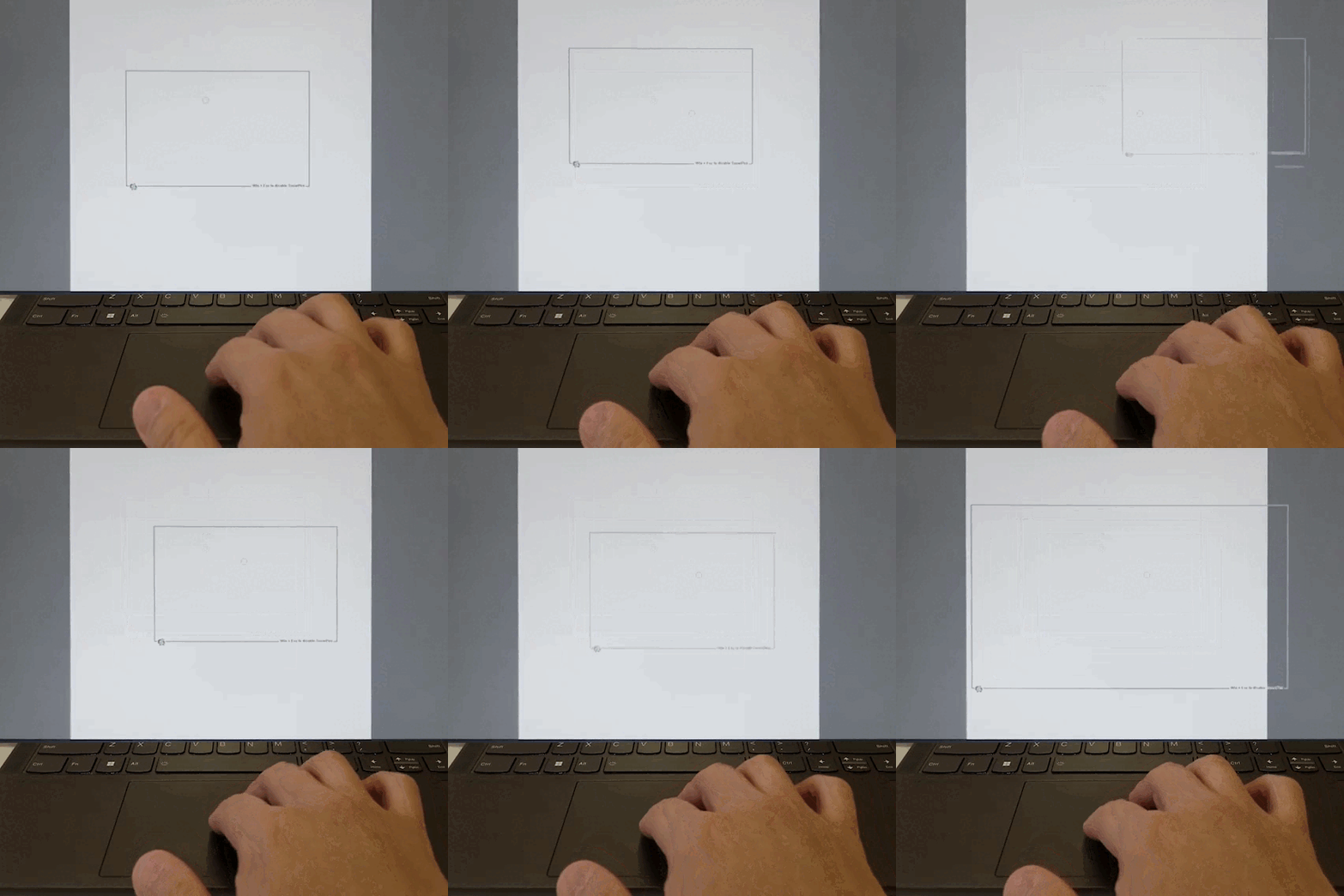
When using SonarPen with a notebook touchpad, an overlay is displayed on the screen to provide a reference for the user to know which part of the screen (canvas) the strokes will be projected onto. The size and location of the overlay can be adjusted easily using 2 fingers move and zoom gestures.